Follow this guide for three ways to go paperless with your NC Quick Pass account.

Email notifications

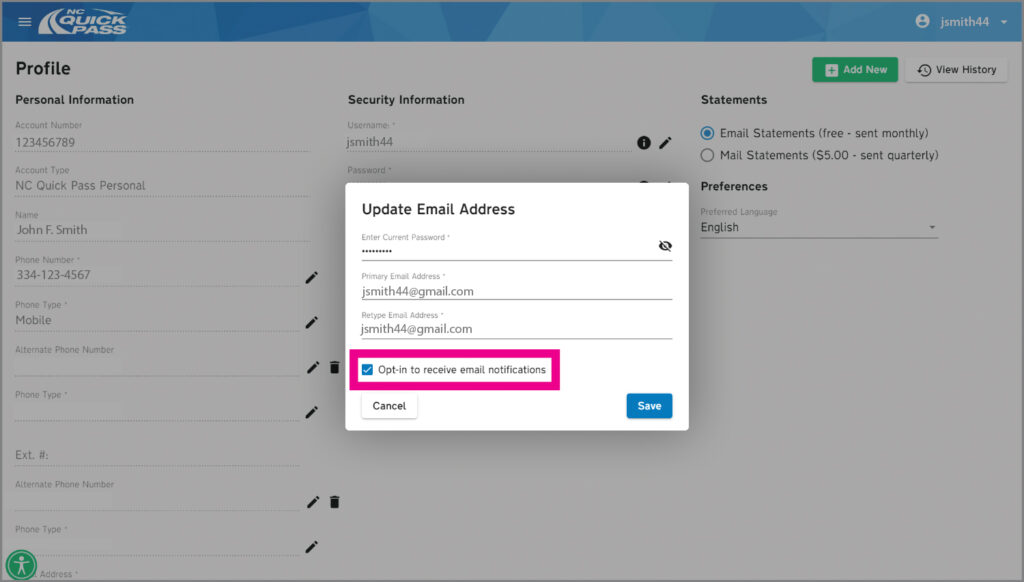
  • Log in to your account.
  • Go to the Profile section.
  • Select the pencil icon next to Email Address for your primary email.
  • Select the checkbox to opt-in to receive email notifications.
  • Enter your current password.
  • Select Save to start receiving email notifications.

Additional names on account cannot opt-in to receive email notifications.

Update Email Address section of account profile

Text notifications

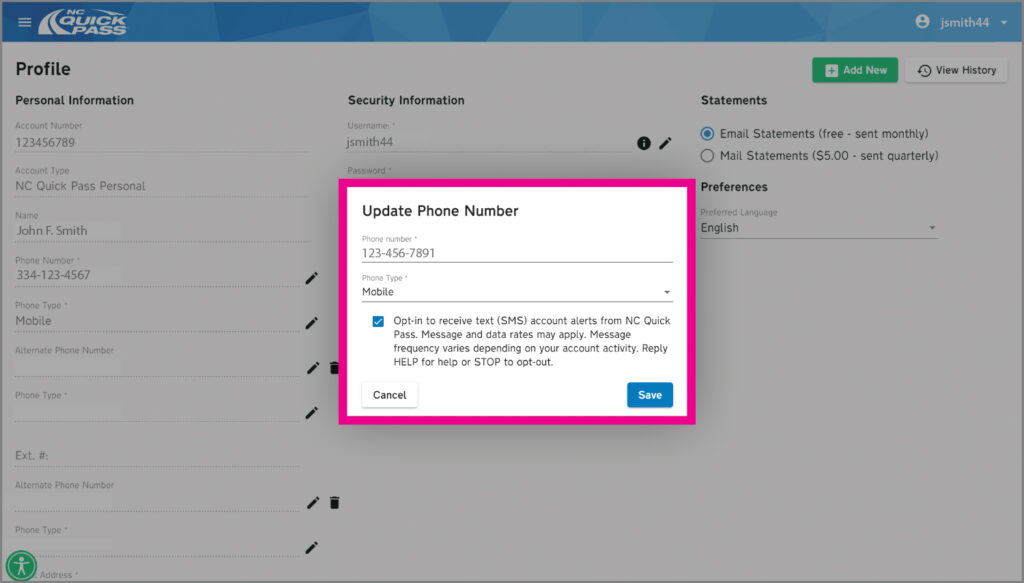
  • Log in to your account.
  • Go to the Profile section.
  • Select the pencil icon next to Phone Type for your primary phone number.
  • Update your Phone Type to Mobile.
  • Select the checkbox to opt-in to receive texts.
  • Select Save.

You will receive a text to confirm your phone number. Reply YES to start receiving account alerts and updates.

Additional names on account cannot opt-in to receive text message notifications.

Update Phone Number section of Account Profile

Email statements

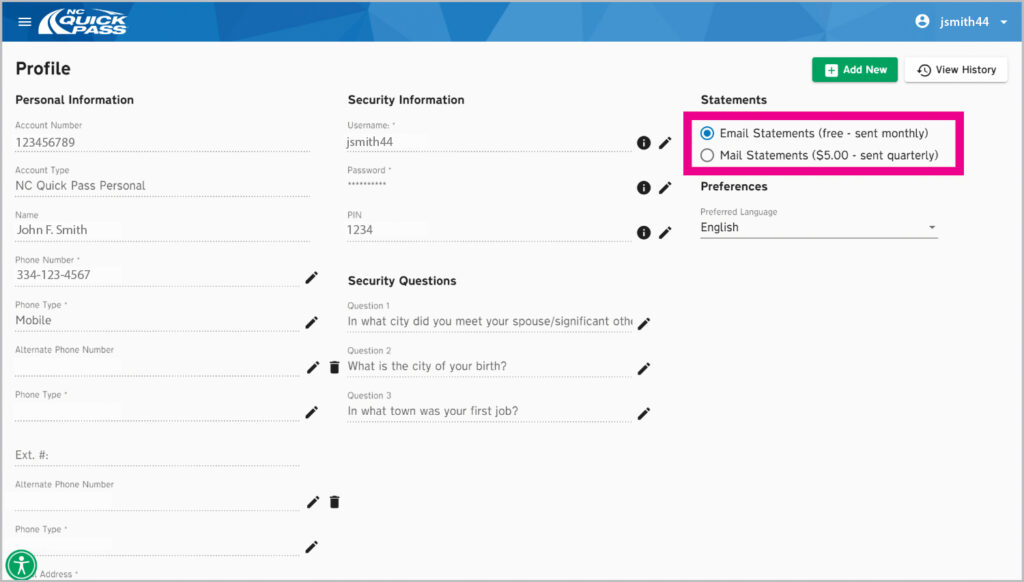
  • Log in to your account.
  • Go to the Profile section.
  • Find the Statements section on the Profile page.
  • Select the Email Statements option button to start receiving email statements.
Statements Section of Account Profile

Don’t have an account?